Resources
Managing files
Upload, describe and publish a file resource (editor).
Resources → Files → Add Resource, or clicking any row in the list, opens the file form — the same form for uploading a new file and editing an existing one.
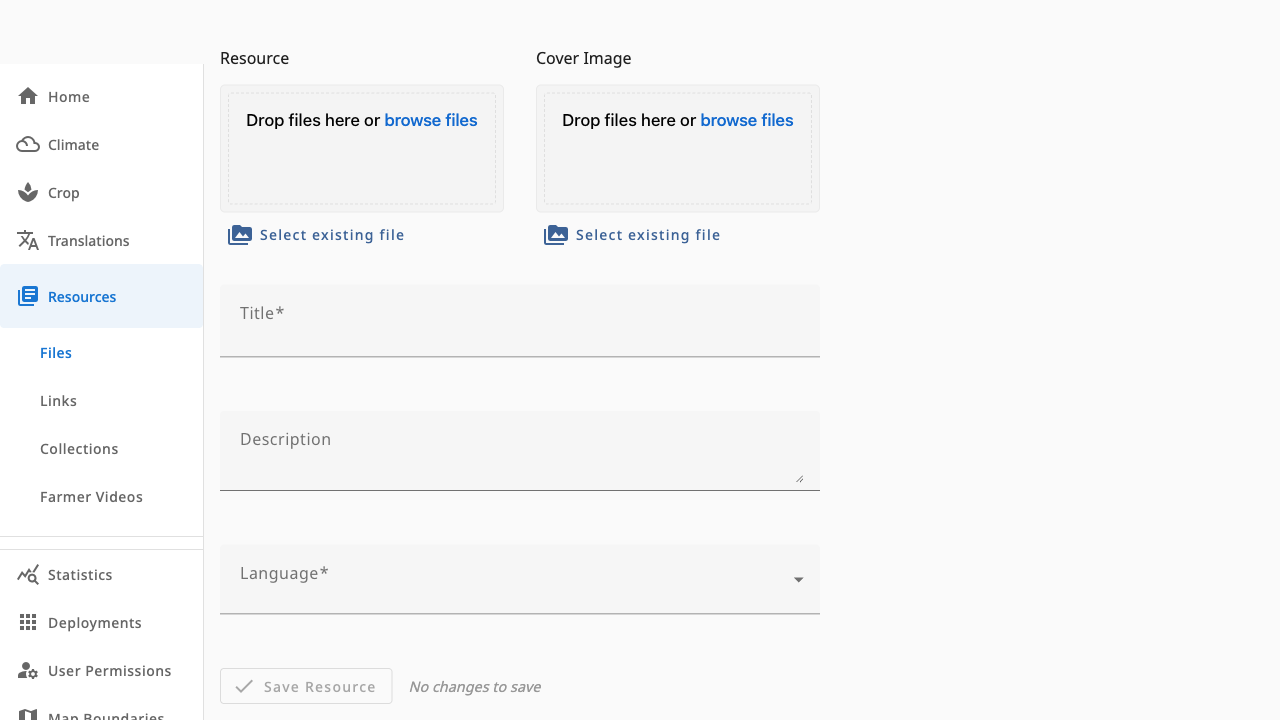 123
- 1Resource upload — drop a file or pick an existing one from storage
- 2Cover image — thumbnail shown in lists
- 3Title (required), Description and Language (required) — how the file appears in the app
Steps
- Upload the file (PDF, MP4, MP3 or image) or select an existing file from country storage. File details — name, type and size — fill in automatically.
- Add a cover image so the file is recognisable in lists.
- Enter a Title and optional Description, and choose the Language.
- Save Resource (below the visible area — scroll down). The file is upserted and appears in the list and in linked collections immediately.
Editing an existing file (shown here for completeness) offers the same fields plus Delete Resource for files you can edit and, for externally-hosted files, a View Resource link.
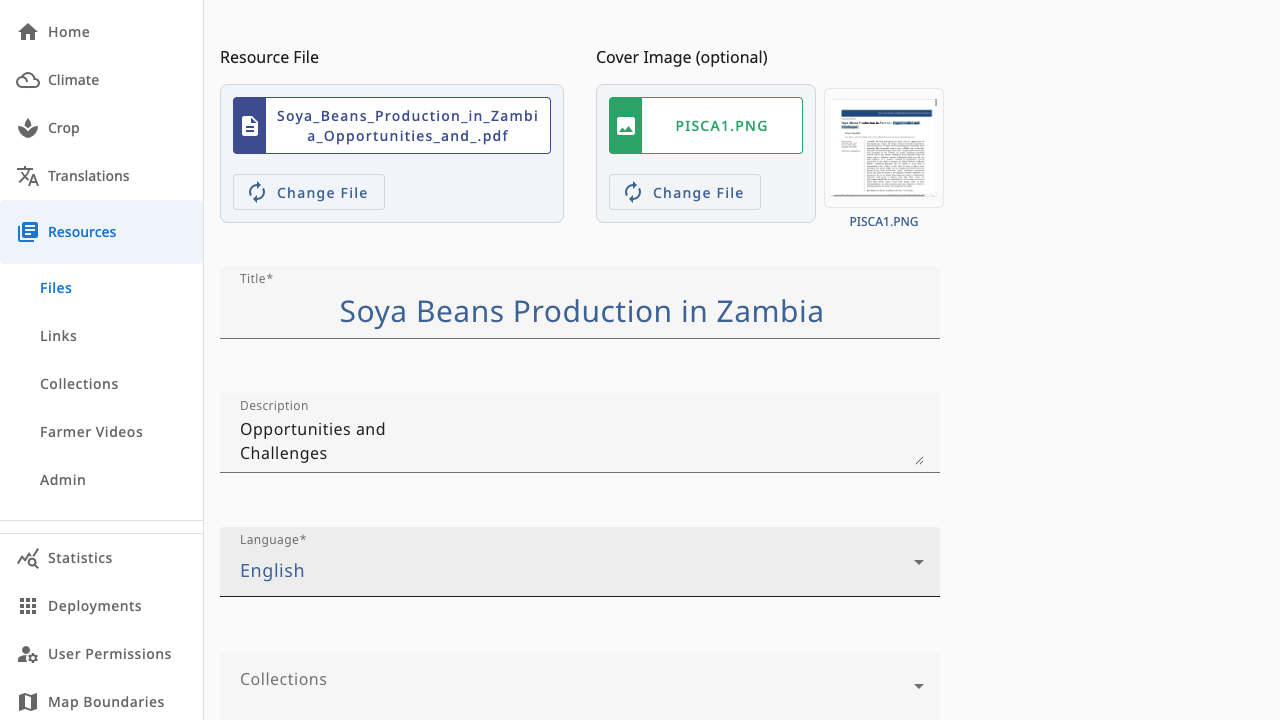
Deleting a resource removes it from the dashboard and from future app data releases. Already-downloaded copies on devices are unaffected.
Who can do what
EveryoneOpen any row, but the form is read-only View Resource — uploads, fields and buttons are disabled.
EditorUpload new files; edit or delete owned files, while files owned by someone else stay read-only (
resources.editor).AdminEdit or delete any file regardless of owner; deletion is permanent — see above (
resources.admin).