Resources
Managing collections
Create and edit resource collections, choosing which files and links they group (editor).
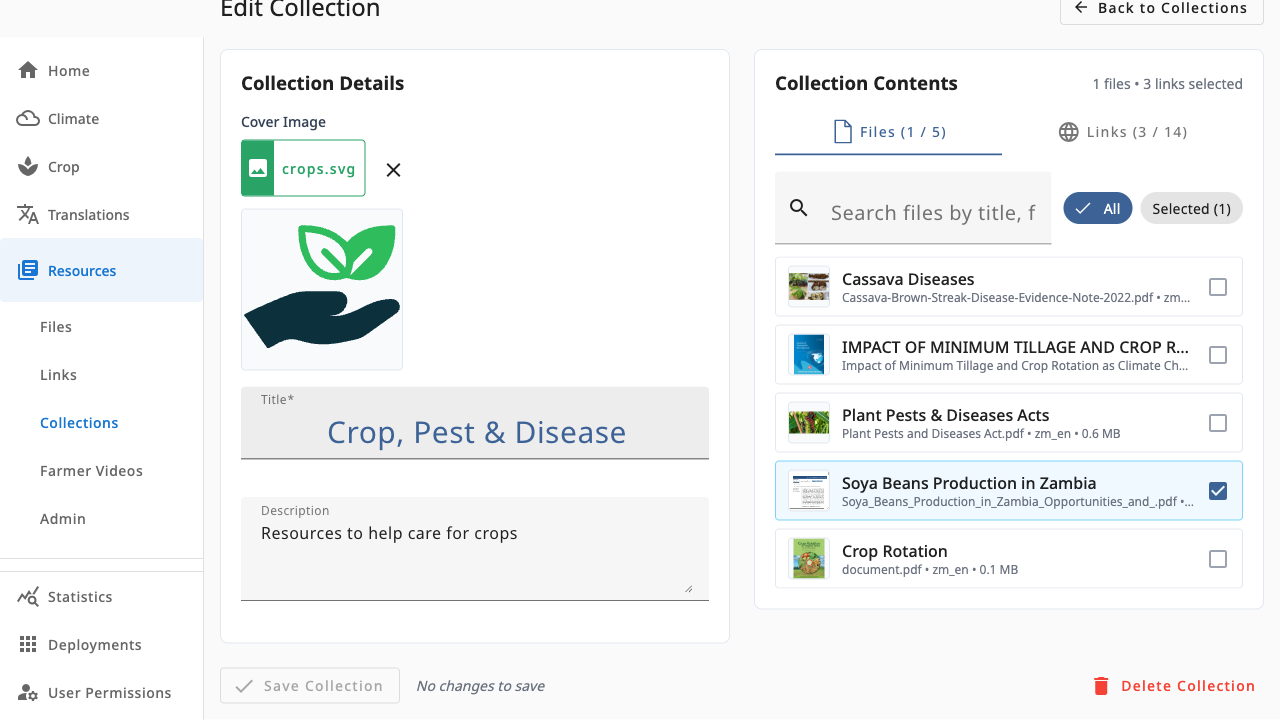
Resources → Collections → Add Collection, or clicking any row in the list, opens the collection editor — the form that decides a collection's title, cover and which files and links belong to it.
 12345
- 1Cover image — thumbnail shown in lists and the field app
- 2Title (required) and Description — how the collection appears
- 3Files / Links tabs — counts show selected of total
- 4Search and All / Selected filter — narrow the pick lists
- 5Tick rows to add files and links — blue rows are selected
Steps
- Enter a Title (required) and an optional Description explaining what the collection groups.
- Add an optional Cover Image (jpg, png, svg or webp) so the collection is recognisable in lists and in the field app.
- Pick the contents in Collection Contents: the Files tab lists every file in the deployment, the Links tab every link. Use search or the All / Selected filter to narrow the list, then tick rows to include them — the header counts selected files and links as you go.
- Save Collection. The collection is upserted and appears in the list and in the field app data immediately.
Editing and deleting
Opening an existing collection shows the same form with its current contents pre-selected. Saving writes the new membership list — unticking a file or link removes it from the collection without deleting the underlying resource. Delete Collection removes the collection itself; the files and links it grouped are unaffected.
Deleting a collection removes it from the dashboard and from future app data releases. Already-downloaded copies on devices are unaffected.
Who can do what
EveryoneOpen any collection, but the form is read-only View Collection — save and delete stay hidden.
EditorCreate new collections and edit any existing one — ownership does not restrict editing, unlike files and links (
resources.editor). Delete only owned collections.AdminDo everything editors can, and additionally delete any collection (
resources.admin).