Resources
Managing files
Upload, describe and publish a file resource (admin).
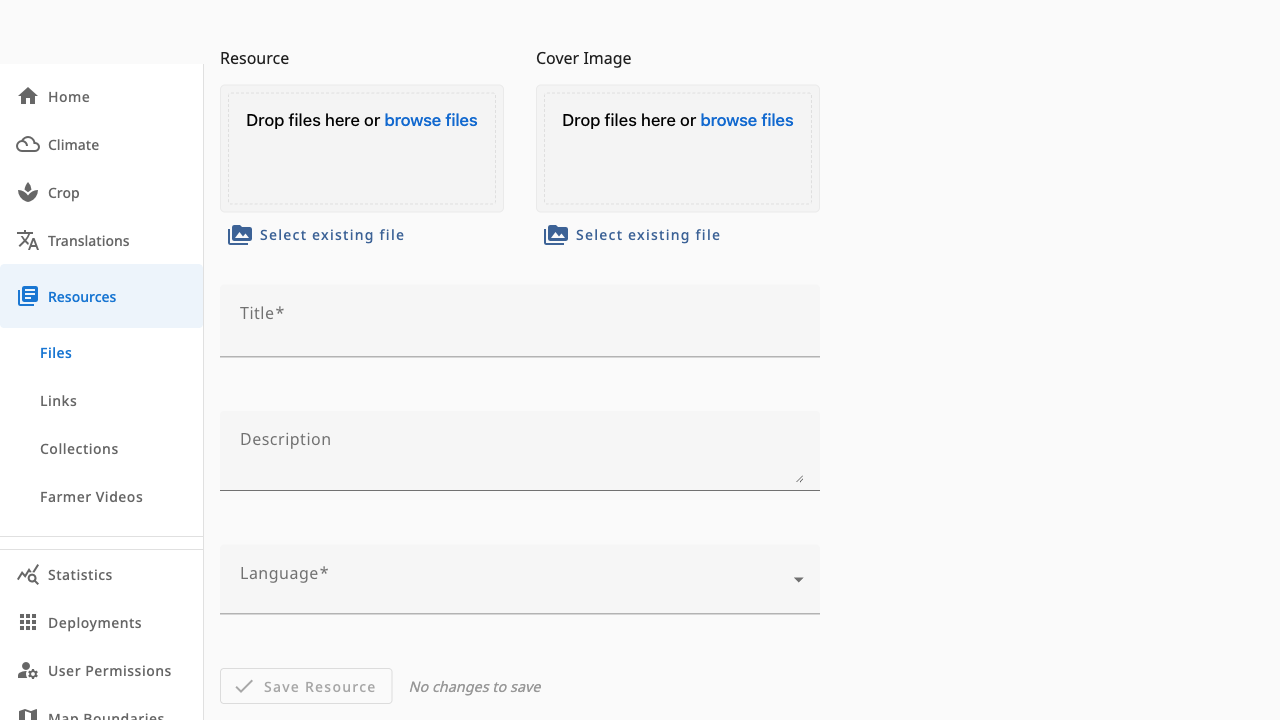
Creating and editing files requires the resources.admin role. Both actions share the same form: Resources → Files → Add Resource, or click any row to edit it.
 1234
1234- 1Resource upload — drop a file or pick an existing one from storage
- 2Cover image — thumbnail shown in lists (jpg, png or svg)
- 3Title*, Description and Language* — how the file appears in the app
- 4Save Resource — validates required fields, then publishes
Steps
- Upload the file (PDF, MP4, MP3 or image) or select an existing file from country storage. File details — name, type and size — fill in automatically.
- Add a cover image so the file is recognisable in lists.
- Enter a Title and optional Description, and choose the Language.
- Save Resource. The file is upserted and appears in the list and in linked collections immediately.
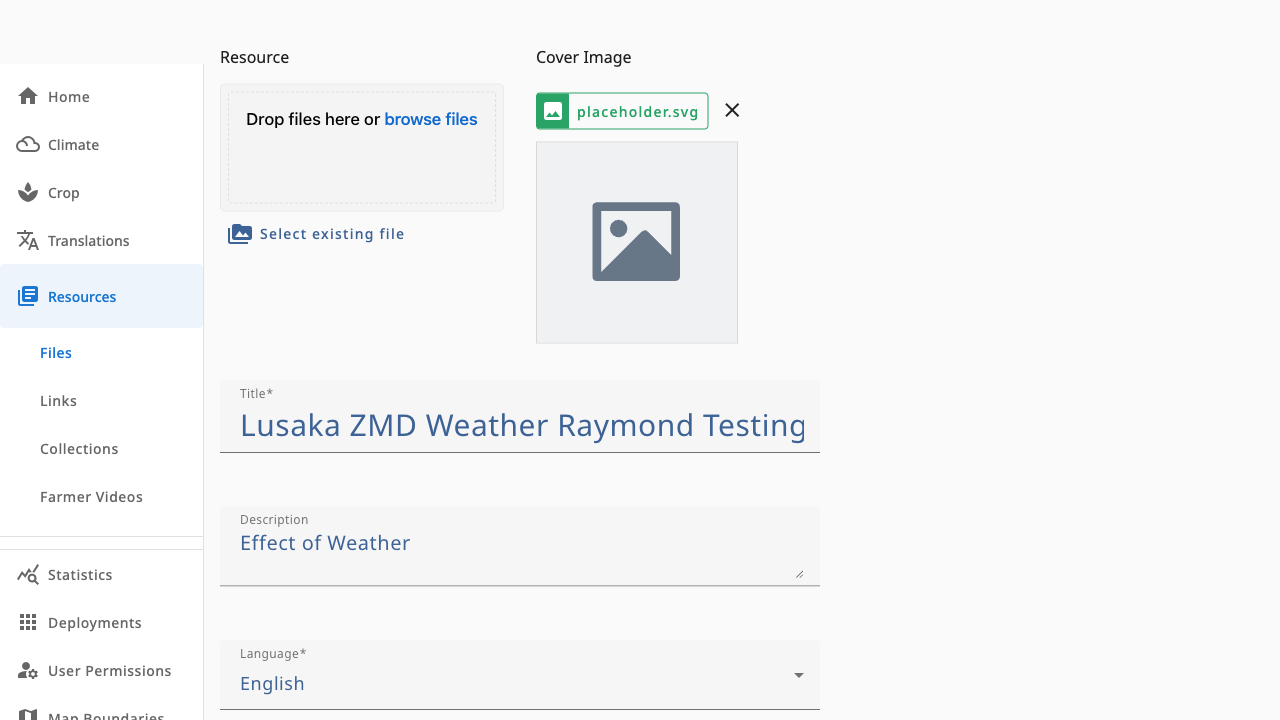
Editing an existing file (shown here for completeness) offers the same fields plus Delete Resource and, for externally-hosted files, a View Resource link.
Deleting a resource removes it from the dashboard and from future app data releases. Already-downloaded copies on devices are unaffected.