Getting started
Signing in
How to access the PICSA Dashboard and what you see on arrival.
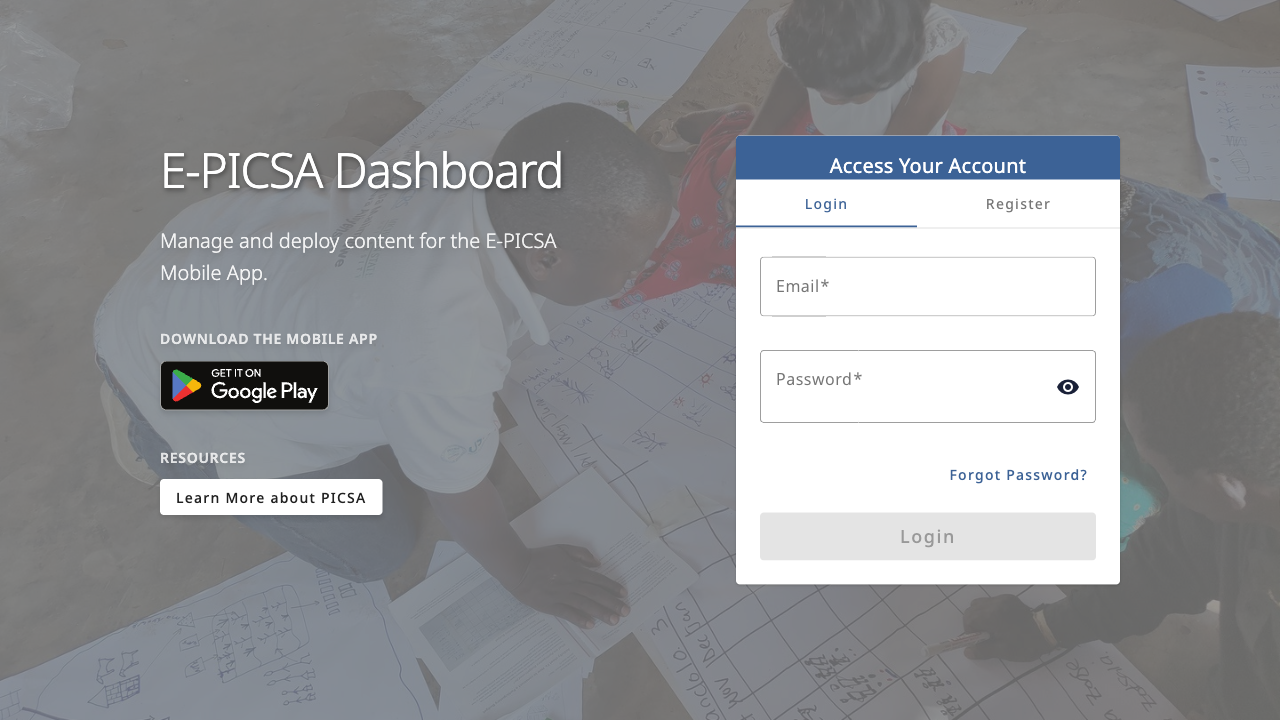
The dashboard uses email and password sign-in. Your account is created by an administrator — there is no public self-registration.
Sign in
- Open the dashboard in your browser.
- Enter the email address and password provided by your administrator.
- After signing in you are asked to pick a deployment (for example Zambia App or Malawi App). Everything you see afterwards belongs to that deployment.
After signing in
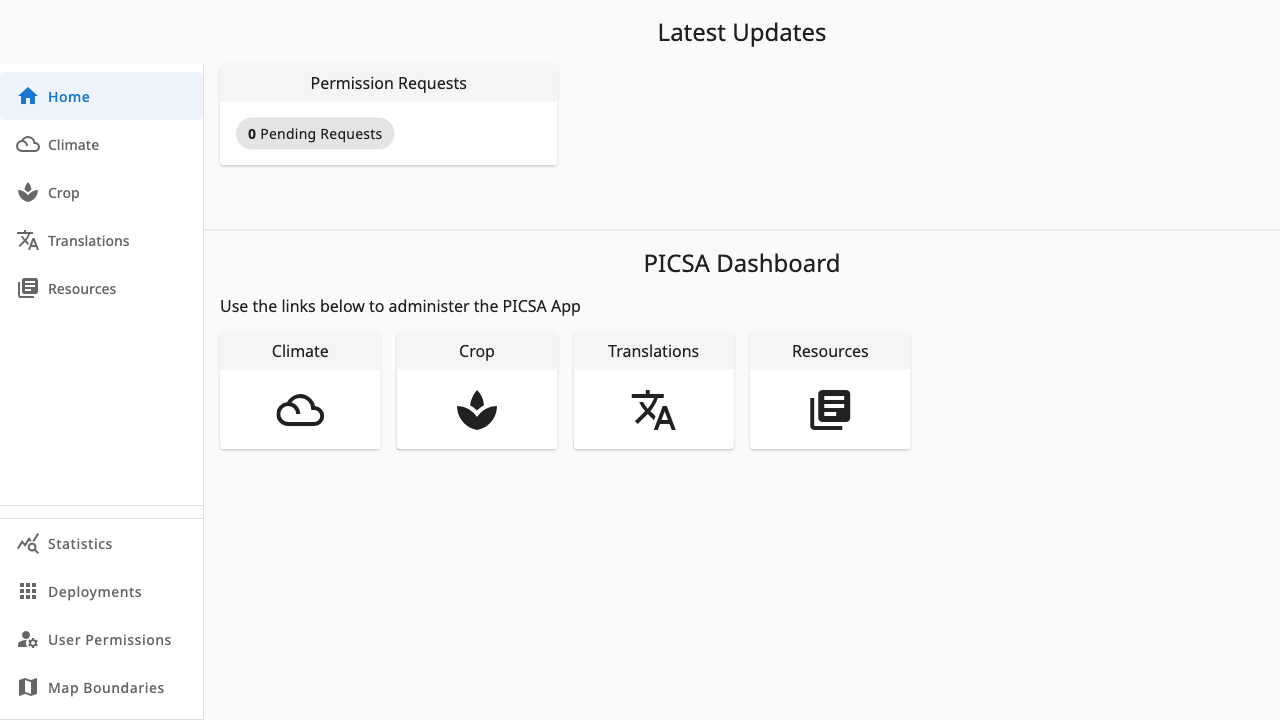
You land on Home, a hub of cards linking to every section your role can access. Above the cards, Latest Updates surfaces anything waiting for you — for example pending permission requests if you manage users.
 123
123- 1Latest Updates — tasks for your role, such as permission requests
- 2Section cards — shortcuts into Climate, Crop, Resources and more
- 3Sidebar — full navigation, always available
Use the deployment switcher in the header at any time to move between country apps. Changing deployment reloads the dashboard in the new context.
Lost your password? Open your Profile from the avatar menu and use the password-reset page — see Your profile.